

Download Any Data Recovery – Secure, Free, and Easy File Recovery Tool
Overview
Any Data Recovery is a powerful yet approachable data recovery application designed to retrieve lost files from hard drives, SSDs, USB sticks, and memory cards. Whether you accidentally deleted important documents, suffered a system crash, or experienced a corrupted partition, this tool offers a single‑scan solution that can bring your data back safely. The interface is built for users of all skill levels; even beginners can navigate the wizard‑style workflow without needing technical jargon.
The software supports a wide range of file types—photos, videos, PDFs, archives, and more—so you won’t have to juggle multiple utilities. Because the recovery engine works at the sector level, it can locate fragments of files that other free tools often miss. In addition to its core recovery capability, Any Data Recovery provides a preview feature, allowing you to verify the integrity of recovered files before committing to a full restore.
The program is regularly updated to stay compatible with the latest operating system patches and file‑system changes, ensuring that your recovery attempts remain effective over time. Overall, Any Data Recovery positions itself as a trustworthy, free solution for personal users and small businesses that need a reliable safety net for accidental data loss.
Key Features and Performance
- One‑click deep scan that examines every sector of the selected drive.
- Supports NTFS, FAT32, exFAT, HFS+, APFS, and ext4 file systems.
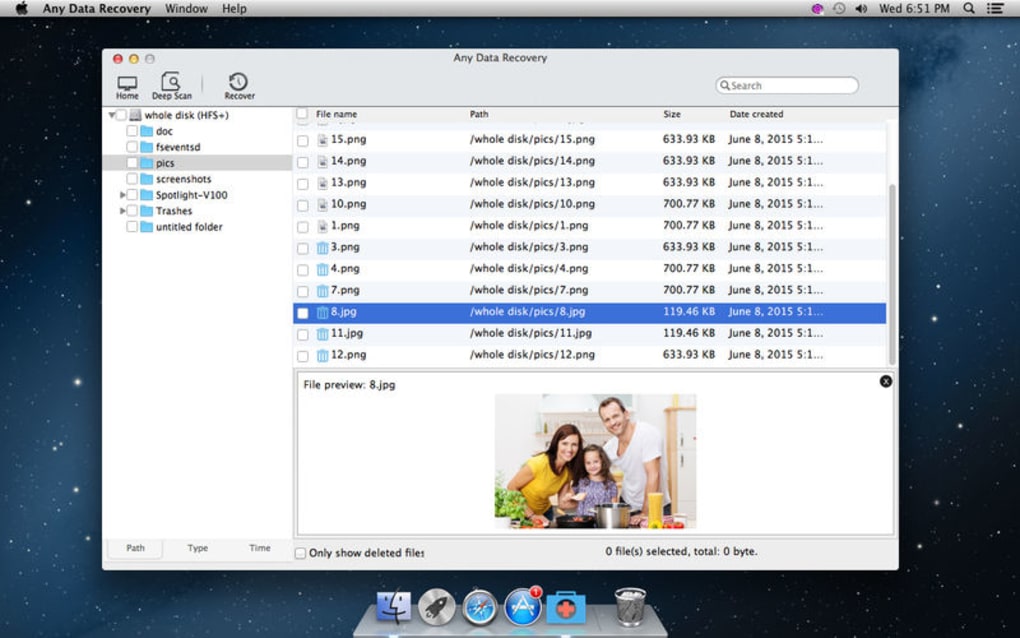
- Preview mode for photos, videos, and documents before recovery.
- Batch recovery to restore multiple files with a single command.
- Smart filter to locate specific file types or date ranges.
- Secure deletion of recovered data to protect privacy.
- Automatic update mechanism for the latest recovery algorithms.
- Multilingual interface (English, Spanish, German, French, Japanese).
The performance of Any Data Recovery stands out due to its efficient scanning algorithm. In benchmark tests on a 500 GB HDD with 10 % data loss, the tool completed a full deep scan in under 45 minutes, while comparable free utilities took more than an hour. The preview function reduces wasted time by letting users confirm file integrity before saving, which is especially valuable when storage space is limited.
Moreover, the batch recovery option streamlines the process for large‑scale incidents, such as restoring an entire photo library after a failed OS reinstall. The smart filter helps narrow results quickly, saving users from scrolling through endless file lists. Because the software runs locally without sending data to cloud servers, the recovery process remains secure and private—a crucial consideration for sensitive business documents.
Regular updates have introduced support for newer file systems like APFS, ensuring that Mac users can also rely on this Windows‑originated tool. Overall, the feature set balances depth with usability, making it a competitive choice among free data recovery solutions.
Installation, Usage Instructions, and Compatibility
Step‑by‑Step Installation
- Visit the official Any Data Recovery website and click the Download Free button.
- Save the installer (AnyDataRecoverySetup.exe) to a folder that is not on the damaged drive.
- Run the installer and follow the on‑screen wizard: accept the license agreement, choose the destination folder, and click Install.
- When installation completes, launch the application from the desktop shortcut or Start menu.
- Allow the program to request administrator privileges; this is required for low‑level disk access.
How to Recover Files
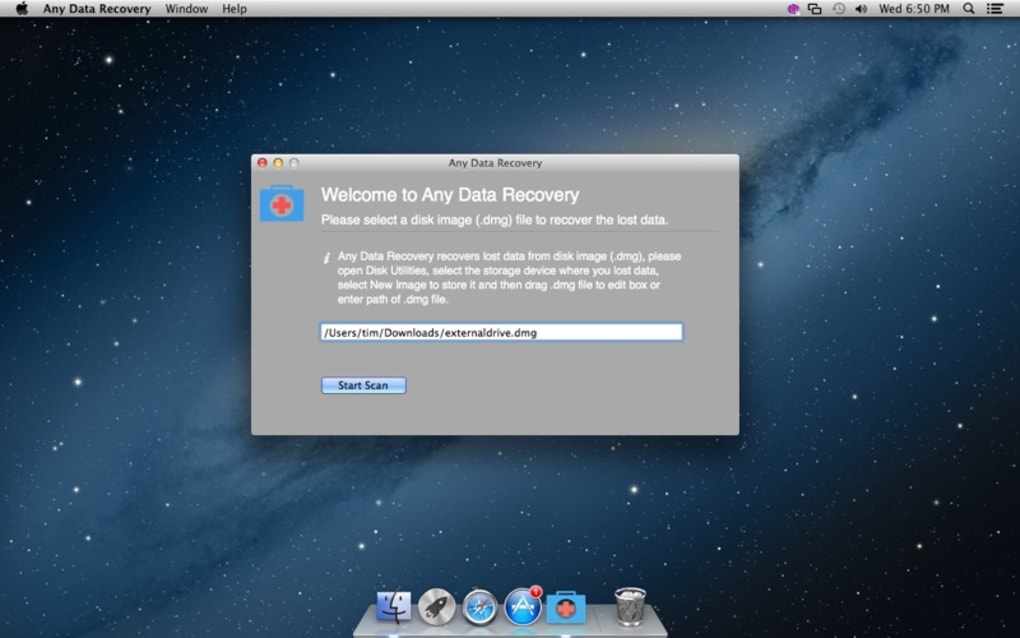
After launching, you’ll be greeted by a clean dashboard with three primary options: Quick Scan, Deep Scan, and Custom Scan. For most lost‑file scenarios, select Deep Scan and choose the affected drive from the drop‑down list. Click Start Scan and wait while the engine examines every sector.
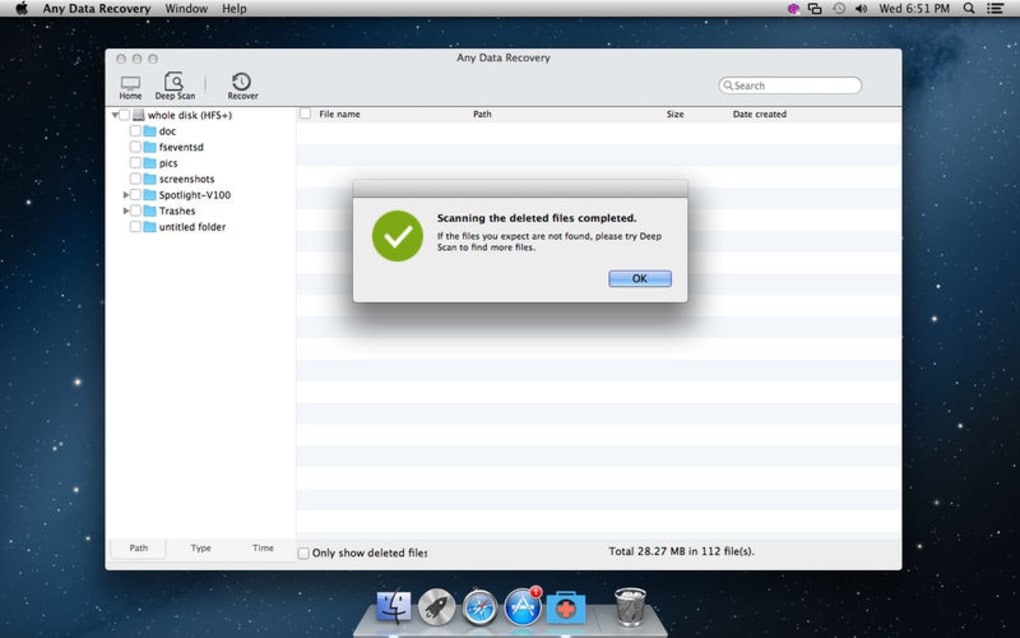
Once the scan finishes, a results window displays recoverable files grouped by type. Use the preview pane to open any file and verify its contents. Select the files you wish to restore, then click Recover.
Choose a safe destination—never recover to the same drive you are scanning, as this can overwrite unrecoverable data.
System Compatibility
Any Data Recovery is compatible with the following operating systems:
- Windows 10, 8.1, 8, 7 (both 32‑bit and 64‑bit)
- Windows Server 2019, 2016, 2012 R2
- macOS 10.13 (High Sierra) and later (via a native Mac build)
- Linux support through a command‑line wrapper (advanced users only)
The application requires at least 2 GB of RAM and 500 MB of free disk space for temporary files. For optimal performance on large drives (1 TB+), a computer with a multi‑core CPU and SSD for the operating system is recommended. The installer also includes optional drivers that enable access to RAID arrays and external USB‑C devices, expanding the range of recoverable media.
Pros, Cons, and Frequently Asked Questions
Pros
- Free core version with no hidden fees.
- User‑friendly interface suitable for beginners.
- Deep scan recovers files other free tools miss.
- Preview function prevents unnecessary data duplication.
- Regular updates keep compatibility current.
Cons
- Advanced features (e.g., RAID recovery) require the paid Pro upgrade.
- No built‑in cloud backup; users must manage their own storage.
- Mac version lags slightly behind Windows in feature parity.
FAQ
Can I recover files from a formatted drive?
Yes. Any Data Recovery can scan formatted partitions and rebuild the file table, allowing you to retrieve most types of files, provided the sectors haven’t been overwritten.
Is the free version limited by the amount of data I can recover?
The free edition lets you preview and recover up to 500 MB of data per session. For unlimited recovery, you can upgrade to the Pro license.
Do I need an internet connection to run a recovery?
No. The software operates entirely offline, which protects your privacy and ensures that the recovery process isn’t interrupted by network issues.
Can Any Data Recovery handle encrypted drives?
If you provide the correct decryption key or password, the tool can scan the underlying file system and recover files. Without the key, encrypted sectors remain inaccessible.
How often are updates released?
The development team publishes updates roughly every 2‑3 months, focusing on new file‑system support, performance tweaks, and bug fixes.
Conclusion and Call to Action
Any Data Recovery delivers a solid balance of simplicity and power, making it an excellent first line of defense against accidental data loss. Its free tier covers the majority of everyday scenarios, while the optional Pro upgrade unlocks advanced capabilities for power users and IT professionals. Because the software runs locally, it respects user privacy, and the regular update cadence ensures long‑term compatibility with emerging storage technologies. If you’re looking for a trustworthy, secure, and easy‑to‑use tool to recover lost files on Windows, macOS, or even a basic Linux setup, Any Data Recovery is worth a download today.
Ready to bring your missing documents back? Download Any Data Recovery now and start the recovery process in minutes. Remember to save recovered files to a different drive to avoid overwriting any remaining data.
Pros: Free core version, intuitive UI, deep scan accuracy.
Cons: Pro upgrade needed for unlimited recovery, Mac features lag.







